
Perform Version Upgrades Safely
Large-scale updates such as version upgrades carry significant risks, including downtime and potential issues, and therefore require careful planning.
With SafeUpgrade, both the old and new versions run in parallel within the same environment, allowing compatibility and stability to be verified in advance.
Because the switch is performed only after safety is ensured, large-scale updates can be completed without stopping services.
This section explains how to upgrade the PHP version using SafeUpgrade in KUSANAGI Security Edition.
Refer to the KUSANAGI Security Edition Quick Start for setup instructions.
Check for Display Issues on the Website
Before performing the upgrade, confirm that there are no display issues on the current site.
Since checking every page on the current site is difficult, it is recommended to select several representative pages for verification.
Check PHP Errors
If PHP errors already exist before the upgrade, it becomes difficult to determine whether issues after the upgrade are caused by the upgrade itself.
Therefore, ensure that no fatal PHP errors are occurring on the current site.
Log in to the Virtual Machine
First, log in to the virtual machine.
On Linux: use the ssh command.
On Windows: refer to the relevant guide.
Log In to KUSANAGI 9 with Windows "ssh"
Check Current PHP Version
After logging in, check the current PHP version.
KUSANAGI uses the "KUSANAGI commands", which includes additional commands for security operations.
For the use of "KUSANAGI commands", refer the relevant guide.
KUSANAGI 9 commands
Security Edition commands
If the user logging in to the virtual machine is not the "root" user, switch to the "root" user by entering the following.
If the user logging in to the virtual machine is the "root" user, this step will not be necessary.
# sudo su -Retrieve the Status
Use the following command:
# kusanagi statusYou will see "status completed." along with the types and versions of the middleware.
The types and versions shown may vary depending on your environment. Please interpret the output accordingly.
# kusanagi status

(output omitted)

status completed.
Next, check the status output.
Check the KUSANAGI Version and Platform
First, the KUSANAGI "version," "platform," and "base OS" are displayed.
KUSANAGI Version 10.3.12-1.el9
azure-security
AlmaLinux 9
From this output, you can see that the KUSANAGI "version" is "10.3.12-1.el9," the "platform" is the Security Edition running on Azure, and the "base OS" is "AlmaLinux 9."
Check the Web Server Configuration
Next, the current web server configuration is displayed.
"●" indicates a service in use, while "○" indicates a service that is not in use.
*** (active) nginx : nginx129@proxy ***
● nginx129@proxy.service - The NGINX HTTP and reverse proxy server (proxy)
     Loaded: loaded (/usr/lib/systemd/system/nginx129@.service; enabled; preset: disabled)
     Active: active (running) since Wed 2026-04-08 10:14:03 JST; 1h 9min ago

*** (active) nginx : nginx129@production ***
● nginx129@production.service - The NGINX HTTP and reverse proxy server (production)
     Loaded: loaded (/usr/lib/systemd/system/nginx129@.service; enabled; preset: disabled)
     Active: active (running) since Wed 2026-04-08 10:14:02 JST; 1h 9min ago

*** (inactive) httpd : httpd24 ***
○ httpd24.service - The Apache HTTP Server
     Loaded: loaded (/usr/lib/systemd/system/httpd24.service; disabled; preset: disabled)
     Active: inactive (dead)
In this example, Nginx 1.29 is used in the 1. "nginx reverse proxy + nginx" mode configuration, and Apache HTTP Server is not in use.
For details on web server configurations, refer to the KUSANAGI Security Edition Web Server Configurations.
To perform SafeUpgrade, the web server configuration must be set to 1. "nginx reverse proxy + nginx" mode.
If your configuration differs from the above, switch to 1. "nginx reverse proxy + nginx" mode.
If the system is already configured as 1. "nginx reverse proxy + nginx" mode, this step is not required.
Use the following command to switch the configuration.
# kusanagi nginxWhen the message "nginx completed." is displayed, retrieve the status again and verify the web server configuration.
# kusanagi nginx

(output omitted)

nginx completed.
Check the PHP Configuration
Next, the current PHP configuration is displayed.
"●" indicates a service in use, while "○" indicates a service that is not in use.
*** (active) php : php83-fpm ***
● php83-fpm.service - The PHP 8.3 FastCGI Process Manager
     Loaded: loaded (/usr/lib/systemd/system/php83-fpm.service; enabled; preset: disabled)
     Active: active (running) since Wed 2026-04-08 10:07:57 JST; 1h 15min ago
The system is currently using PHP 8.3.
In the following steps, this PHP version will be upgraded.
Check the Remaining Configuration
Next, information such as the database version and Python version is displayed; however, these details are omitted here.
Check Available PHP Versions
Next, check the PHP versions available for upgrade.
PHP versions follow the format shown below:
| 8 | . | 3 | . | 30 |
| Major Version | Minor Version | Release Version |
Release versions (for example, "8.3.31") include only bug fixes and security updates, and are therefore less likely to introduce incompatibilities.
However, minor version updates may include new features and backward-incompatible changes, which can lead to compatibility issues.
A new minor version of PHP (for example, "8.4") is typically released around November each year.
At the same time, support for older minor versions is discontinued. Therefore, it is necessary to upgrade to a supported minor version that continues to receive security updates before the current version reaches end of support.
To check the PHP versions available in KUSANAGI, use the following command:
# kusanagi php --helpThe available PHP versions will be displayed as follows:
# kusanagi php --help

(output omitted)

  --staging {php82,php83,php84,php85,latest}
                        select PHP version for staging

(output omitted)
From this output, you can see that PHP 8.2, 8.3, 8.4, and 8.5 are available.
Note that the available versions are updated annually, so please interpret the output accordingly.
Switch to SafeUpgrade
In this example, the system will be upgraded to the next minor version, "8.4."
To perform a PHP SafeUpgrade, switch the web server configuration to 4. "nginx reverse proxy + production PHP + staging PHP" mode.
Use the following command to switch the configuration.
In this example, the staging period is set to 7 days.
# kusanagi php --staging php84 --staging-days 7If the message "php completed." is displayed as shown below, the switch is complete.
# kusanagi php --staging php84 --staging-days 7

(output omitted)

php completed.
Retrieve the Status
Next, retrieve the status after the switch.
Use the following command to retrieve the status:
# kusanagi statusYou will see the message "status completed." along with the types and versions of the middleware.
The types and versions shown may vary depending on your environment. Please interpret the output accordingly.
# kusanagi status

(output omitted)

status completed.
Check the Web Server Configuration
Next, review the web server configuration output.
"●" indicates a service in use, while "○" indicates a service that is not in use.
*** (active) nginx : nginx129@proxy ***
● nginx129@proxy.service - The NGINX HTTP and reverse proxy server (proxy)
     Loaded: loaded (/usr/lib/systemd/system/nginx129@.service; enabled; preset: disabled)
     Active: active (running) since Wed 2026-04-08 12:19:02 JST; 4s ago

*** (active) nginx : nginx129@production ***
● nginx129@production.service - The NGINX HTTP and reverse proxy server (production)
     Loaded: loaded (/usr/lib/systemd/system/nginx129@.service; enabled; preset: disabled)
     Active: active (running) since Wed 2026-04-08 10:14:02 JST; 2h 5min ago

*** (active) nginx : nginx129@staging ***
● nginx129@staging.service - The NGINX HTTP and reverse proxy server (staging)
     Loaded: loaded (/usr/lib/systemd/system/nginx129@.service; enabled; preset: disabled)
     Active: active (running) since Wed 2026-04-08 12:19:02 JST; 4s ago

*** (inactive) httpd : httpd24 ***
○ httpd24.service - The Apache HTTP Server
     Loaded: loaded (/usr/lib/systemd/system/httpd24.service; disabled; preset: disabled)
     Active: inactive (dead)
In this configuration, Nginx 1.29 is newly running in the staging environment.
Check the PHP Configuration
Next, review the PHP configuration output.
"●" indicates a service in use, while "○" indicates a service that is not in use.
*** (active) php : php84-fpm@staging ***
● php84-fpm@staging.service - The PHP 8.4 FastCGI Process Manager
     Loaded: loaded (/usr/lib/systemd/system/php84-fpm@.service; enabled; preset: disabled)
     Active: active (running) since Wed 2026-04-08 12:19:02 JST; 4s ago

*** (active) php : php83-fpm ***
● php83-fpm.service - The PHP 8.3 FastCGI Process Manager
     Loaded: loaded (/usr/lib/systemd/system/php83-fpm.service; enabled; preset: disabled)
     Active: active (running) since Wed 2026-04-08 12:19:02 JST; 4s ago
In this configuration, PHP 8.4 is newly running in the staging environment.
Validate the New PHP Version
Register Pages for Visual Regression Test in KUSANAGI App
By registering several representative pages in KUSANAGI App, you can automatically detect visual differences such as layout issues.
If any display issues are detected as a result of the verification, SafeUpgrade is stopped and the system is automatically rolled back to the original PHP version.
For instructions on how to register a virtual machine in KUSANAGI App, refer to the KUSANAGI Security Edition Quick Start.
Register Settings for Visual Regression Testing
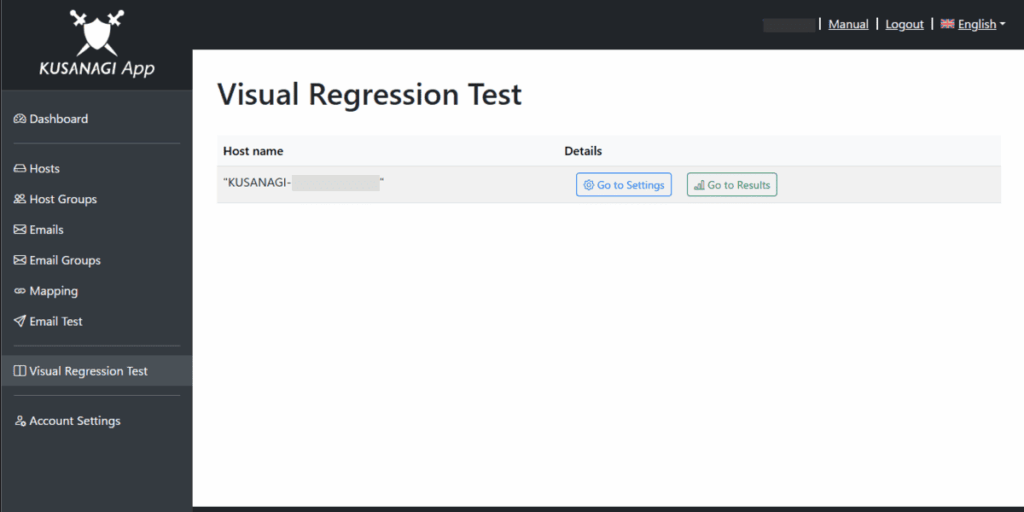
From the left menu, select "Visual Regression Testing."
Then, select "Go to Settings" for the virtual machine registered in KUSANAGI App.
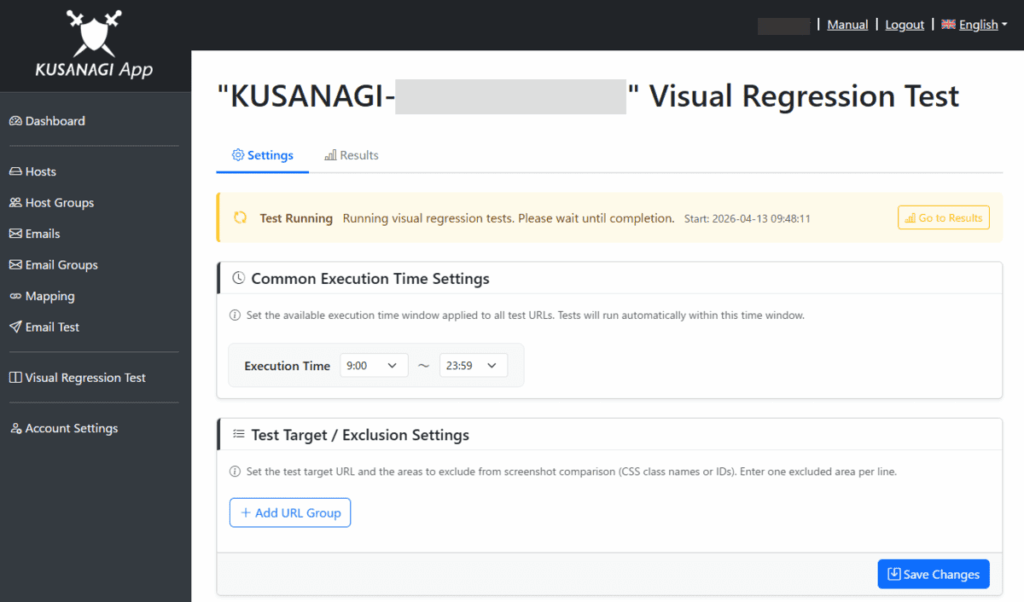
Common Execution Time Settings

Visual regression testing is performed once per day within the time window specified here.
If there are periods of high system load or scheduled maintenance, configure the time window to avoid those periods.
Register Target Test URLs
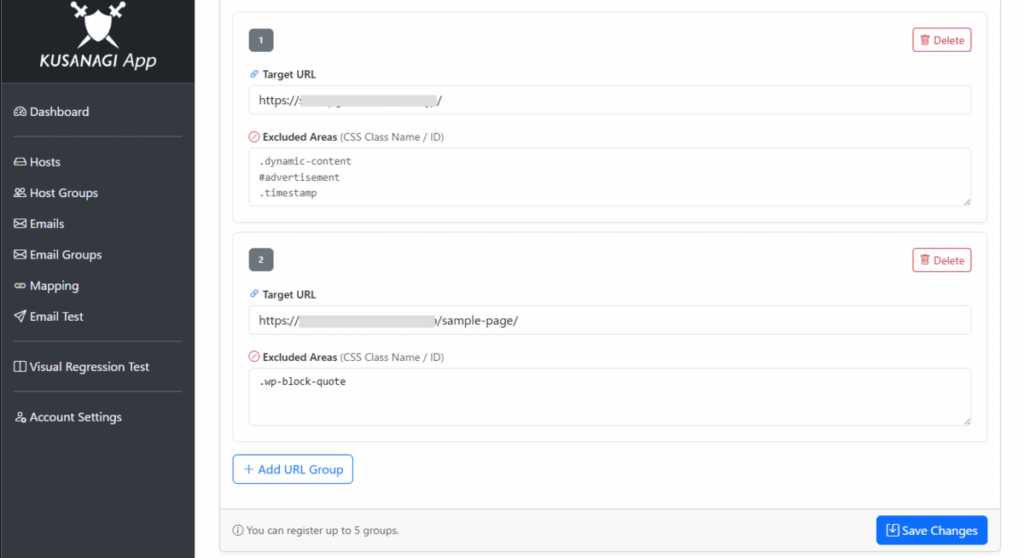
Select "+ Add URL Group".
In "Target URL", specify the URLs of the pages for which screenshots will be captured and compared for visual regression.
In "Excluded Areas", specify CSS class names or IDs to exclude from screenshot comparison.
Use this to exclude areas that change on each access, such as advertisement images or sections displaying recommendations or trends.
Screenshots are captured using both desktop and mobile browsers.
You can specify up to five target test URLs per virtual machine.
Manual Verification
You can also manually verify pages using the new PHP version.
This method is used for pages where automatic visual regression test is difficult, such as pages that require authentication (e.g., the WordPress admin dashboard).
Set the following HTTP header in your browser:
X-Staging: onWhen you access the site with this HTTP header set, the page will be served using the new PHP version.
To use the original PHP version, set the following HTTP header:
X-Production: onIf neither header is set, traffic is load-balanced between the original PHP version and the new PHP version with a 5:1 weighting.
When you are logged in using the new PHP version in the WordPress admin dashboard, the message "You are accessing the KUSANAGI staging environment." will be displayed in the Toolbar.
Note that the staging environment shares the same WordPress instance and database as the production environment. Any changes made during testing will be applied to the production environment, so use caution when performing verification.

Automatic Rollback to the Original PHP Version
If Visual Differences Are Detected in KUSANAGI App
If visual differences are detected during the staging period on pages registered in KUSANAGI App, staging with the new PHP version is terminated and the system is automatically rolled back to the original PHP version.
You can verify whether the original PHP version is running by checking the status.
After rollback, the web server and PHP configurations return to the state prior to executing SafeUpgrade.
You can review the results of visual regression testing in KUSANAGI App.
Review Visual Regression Test Results
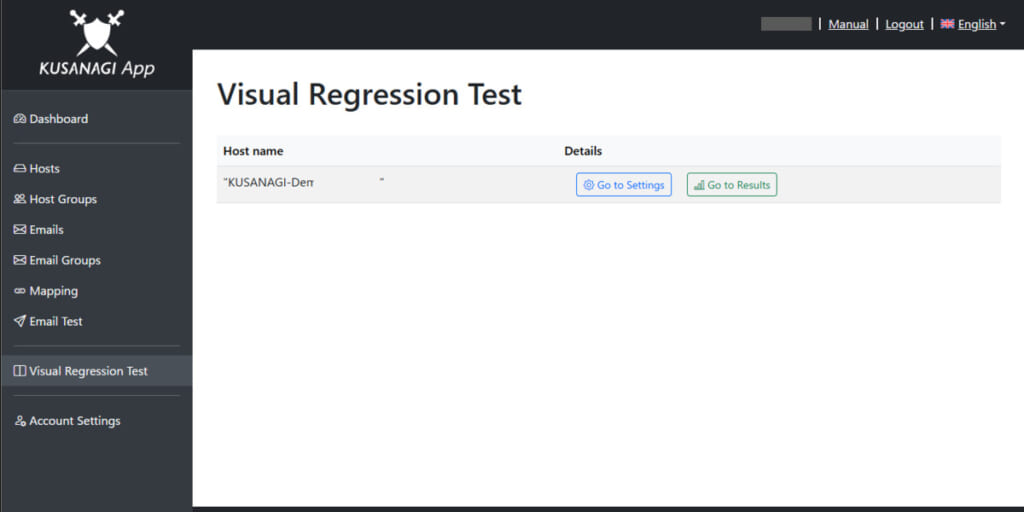
From the left menu, select "Visual Regression Test."
Then, select "Go to Results" for the virtual machine registered in KUSANAGI App.
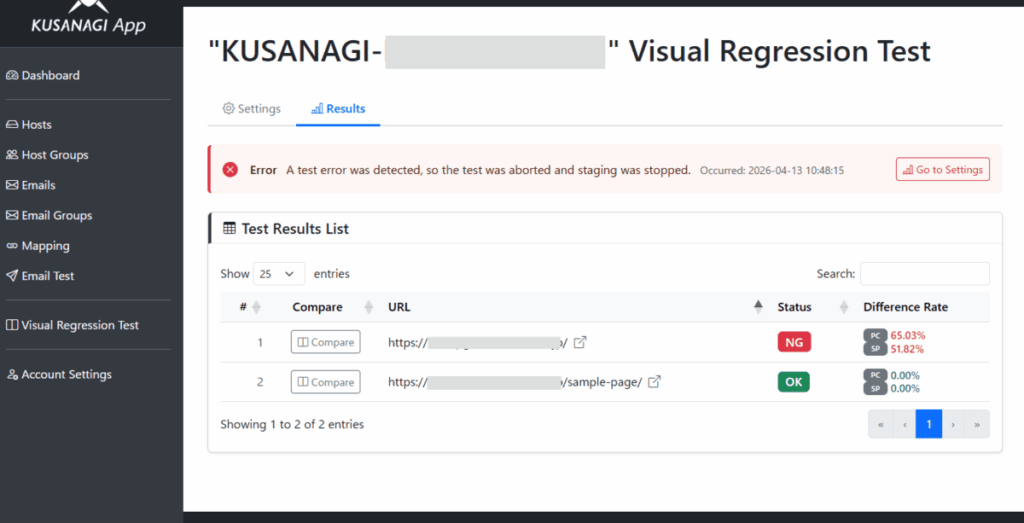
You can review the comparison, status, and difference ratio for each registered target URL.
If the difference ratio is 10% or higher, it is treated as an error.
Select "Compare" to view and compare screenshots for both desktop and mobile.
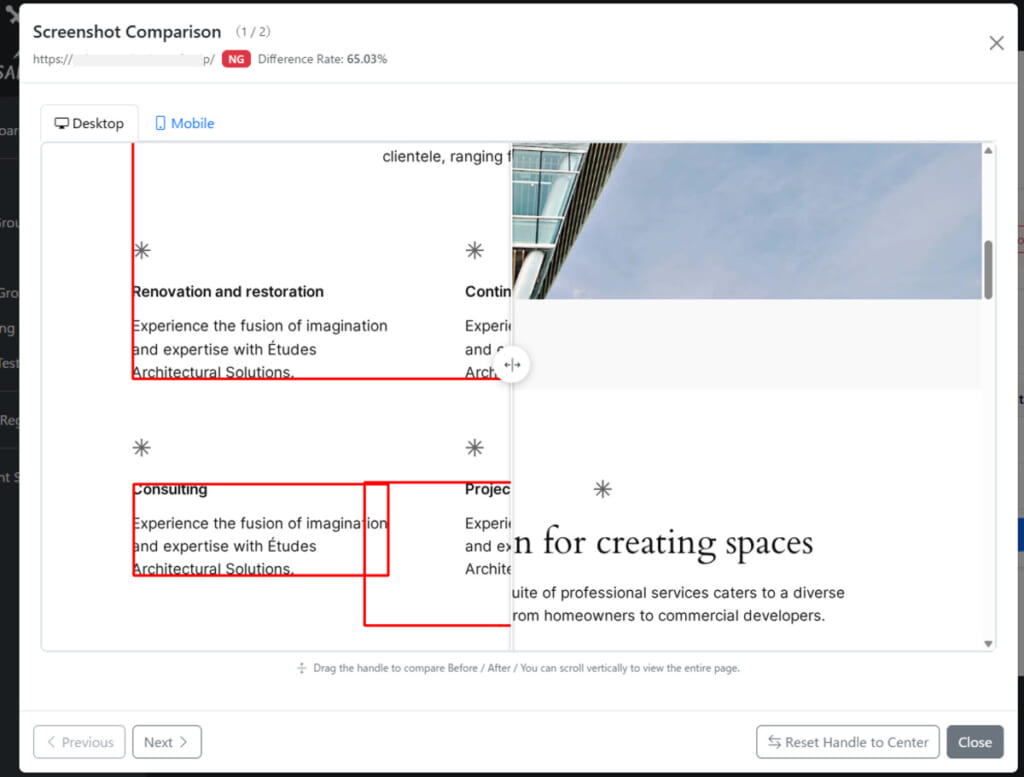
Blocks with detected differences are highlighted with a red border.
By moving the slider in the center, you can compare the output from the production PHP and the staging PHP.
The right side shows the output from the production PHP, and the left side shows the output from the staging PHP.
If PHP Errors Are Detected
If a fatal PHP error ("Fatal Error") is detected during the staging period, staging with the new PHP version is terminated and the system is automatically rolled back to the original PHP version.
You can verify whether the original PHP version is running by checking the status.
After rollback, the web server and PHP configurations return to the state prior to executing SafeUpgrade.
Automatic Promotion to the New PHP Version
If no visual differences are detected on the pages registered in KUSANAGI App and no PHP errors are detected during the staging period, the staging environment is terminated and the new PHP version is automatically promoted to the production environment.
You can verify whether the new PHP version is running by checking the status.
Retrieve the Status
Retrieve the status after the switch.
Use the following command to retrieve the status:
# kusanagi statusYou will see the message "status completed." along with the types and versions of the middleware.
The types and versions shown may vary depending on your environment. Please interpret the output accordingly.
# kusanagi status

(output omitted)

status completed.
Check the Web Server Configuration
The web server configuration after the switch is displayed.
"●" indicates a service in use, while "○" indicates a service that is not in use.
*** (active) nginx : nginx129@proxy ***
● nginx129@proxy.service - The NGINX HTTP and reverse proxy server (proxy)
     Loaded: loaded (/usr/lib/systemd/system/nginx129@.service; enabled; preset: disabled)
     Active: active (running) since Wed 2026-04-08 10:14:03 JST; 1h 9min ago

*** (active) nginx : nginx129@production ***
● nginx129@production.service - The NGINX HTTP and reverse proxy server (production)
     Loaded: loaded (/usr/lib/systemd/system/nginx129@.service; enabled; preset: disabled)
     Active: active (running) since Wed 2026-04-08 10:14:02 JST; 1h 9min ago

*** (inactive) httpd : httpd24 ***
○ httpd24.service - The Apache HTTP Server
     Loaded: loaded (/usr/lib/systemd/system/httpd24.service; disabled; preset: disabled)
     Active: inactive (dead)
From this output, you can confirm that there is no staging environment for Nginx 1.29.
Check the PHP Configuration
Next, review the PHP configuration output.
"●" indicates a service in use, while "○" indicates a service that is not in use.
*** (active) php : php84-fpm ***
● php84-fpm - The PHP 8.4 FastCGI Process Manager
     Loaded: loaded (/usr/lib/systemd/system/php84-fpm.service; enabled; preset: disabled)
     Active: active (running) since Wed 2026-04-08 12:19:02 JST; 4s ago

*** (inactive) php : php83-fpm ***
○ php83-fpm.service - The PHP 8.3 FastCGI Process Manager
     Loaded: loaded (/usr/lib/systemd/system/php83-fpm.service; disabled; preset: disabled)
     Active: inactive (dead)
You can confirm that PHP 8.4 is now in use and that the previous version, PHP 8.3, is no longer in use.
Abort SafeUpgrade
To abort SafeUpgrade during the staging period, terminate staging with the new PHP version and automatically roll back to the original PHP version using the following command:
# kusanagi php --nostagingYou can verify whether the original PHP version is running by checking the status.
After rollback, the web server and PHP configurations return to the state prior to executing SafeUpgrade.
Additional Information
For more details about SafeUpgrade commands and options, refer to the following documentation:
KUSANAGI 9 commands
Security Edition commands


