
The KUSANAGI-Specific Plugin provides common features for running WordPress on KUSANAGI, including page cache, automatic updates, security, and accelerators. It is included and activated in all KUSANAGI editions.
For the diagnostic and AI features added in Business Edition and Premium Edition, see Configuring and Using KUSANAGI AI Assist.
Opening the Administration Screen
Open “KUSANAGI” in the WordPress administration screen. The left menu displays “Dashboard,” “Settings,” “Information,” and “Support.”
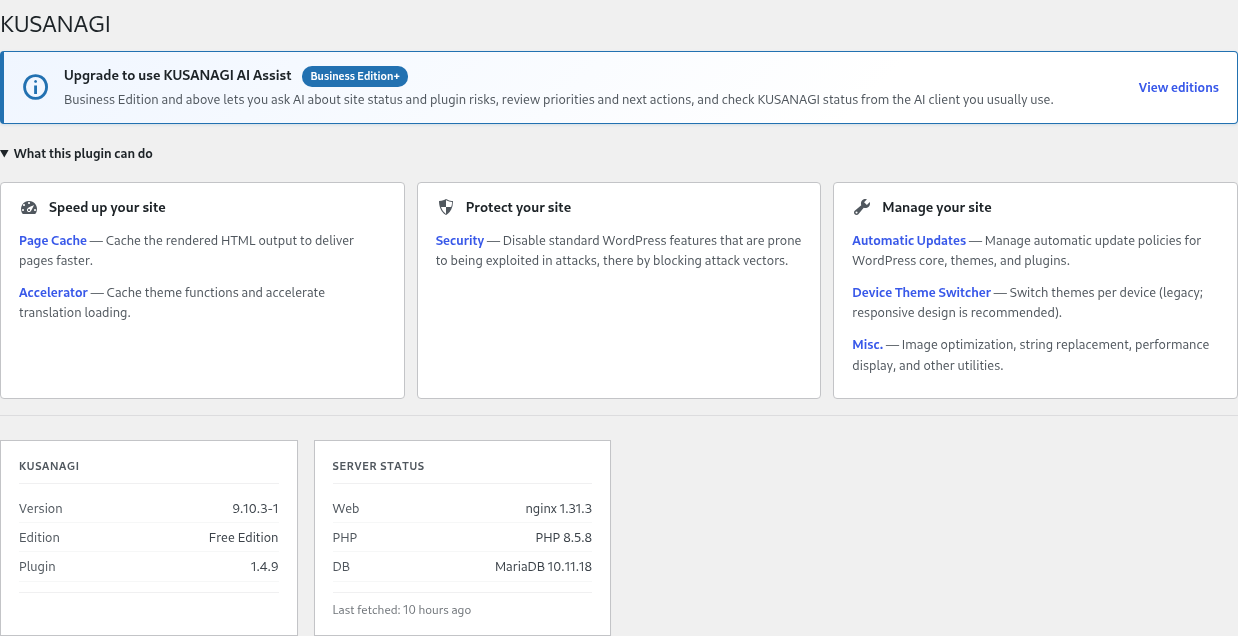
The Dashboard shows the features available through this plugin, the KUSANAGI version and edition, and the status of the web server, PHP, and database. In the free edition, it also displays information about AI Assist, which is available with Business Edition and later editions.
Settings
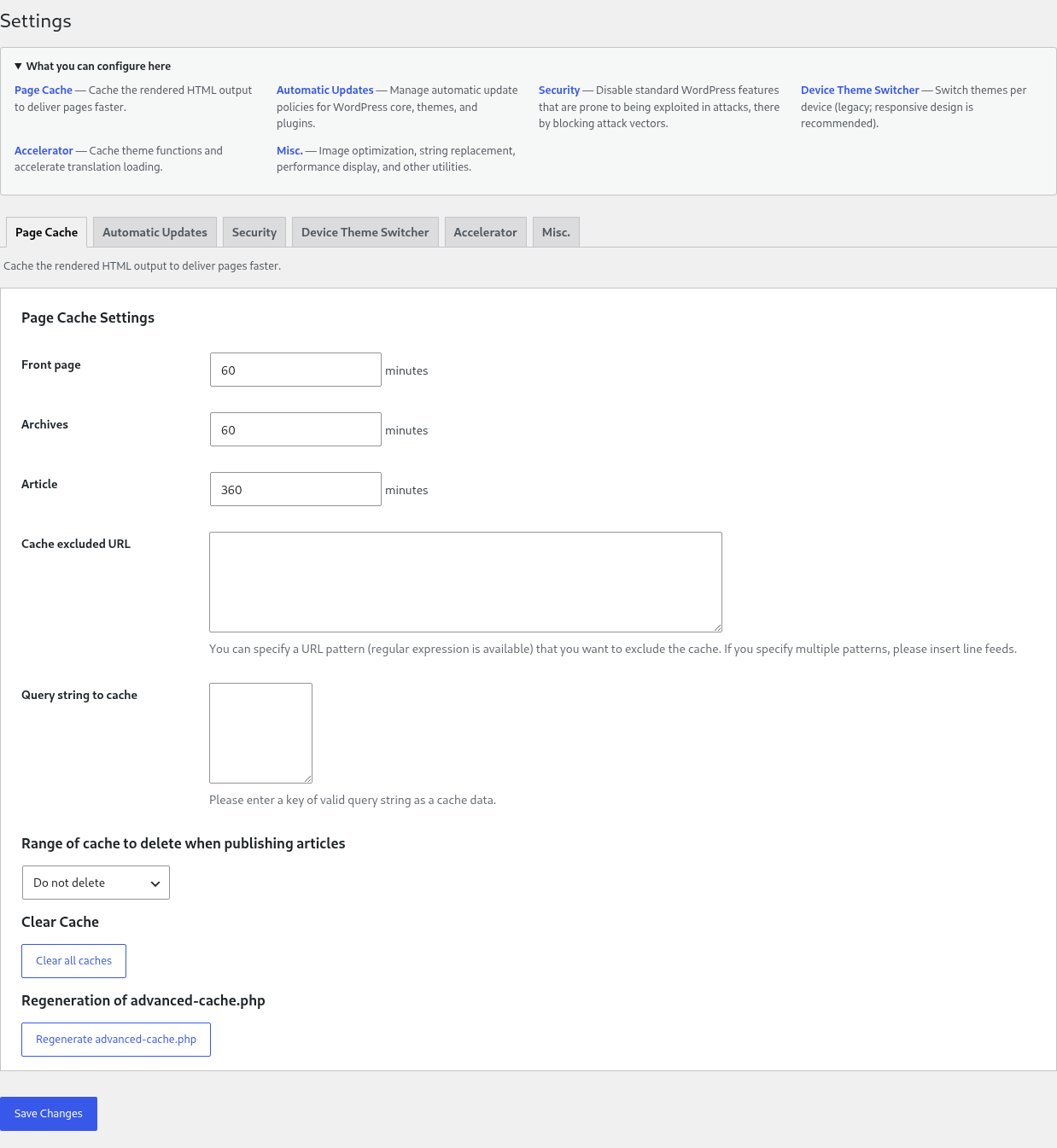
Open “Settings” under “KUSANAGI,” then switch tabs to configure each feature. “Available Settings” at the top of the screen provides an overview of and links to each tab.
Page Cache
This feature stores generated HTML for a specified period and reuses it to deliver pages quickly. It uses KUSANAGI bcache integrated with WordPress.
To enable bcache, log in to the virtual machine over SSH and run the following command as the root user.
# kusanagi bcache on [profile]Replace [profile] with the name of the KUSANAGI profile for which you want to enable bcache.
- Front Page, Archives, and Single Posts: Specify the cache lifetime in minutes.
- Excluded URLs: Specify URL patterns that should not be cached. Regular expressions are supported. Enter multiple patterns on separate lines.
- Cached Query Strings: Specify the query-string keys to include in cached data.
- Cache to Clear When Publishing a Post: Select “Do not clear,” “Post only,” “Post and front page,” or “All.”
- Clear Cache: Deletes all generated cache data. On a high-traffic site, this may temporarily increase the load immediately afterward.
- Regenerate advanced-cache.php: Regenerates the file used to apply the cache settings.
Automatic Updates
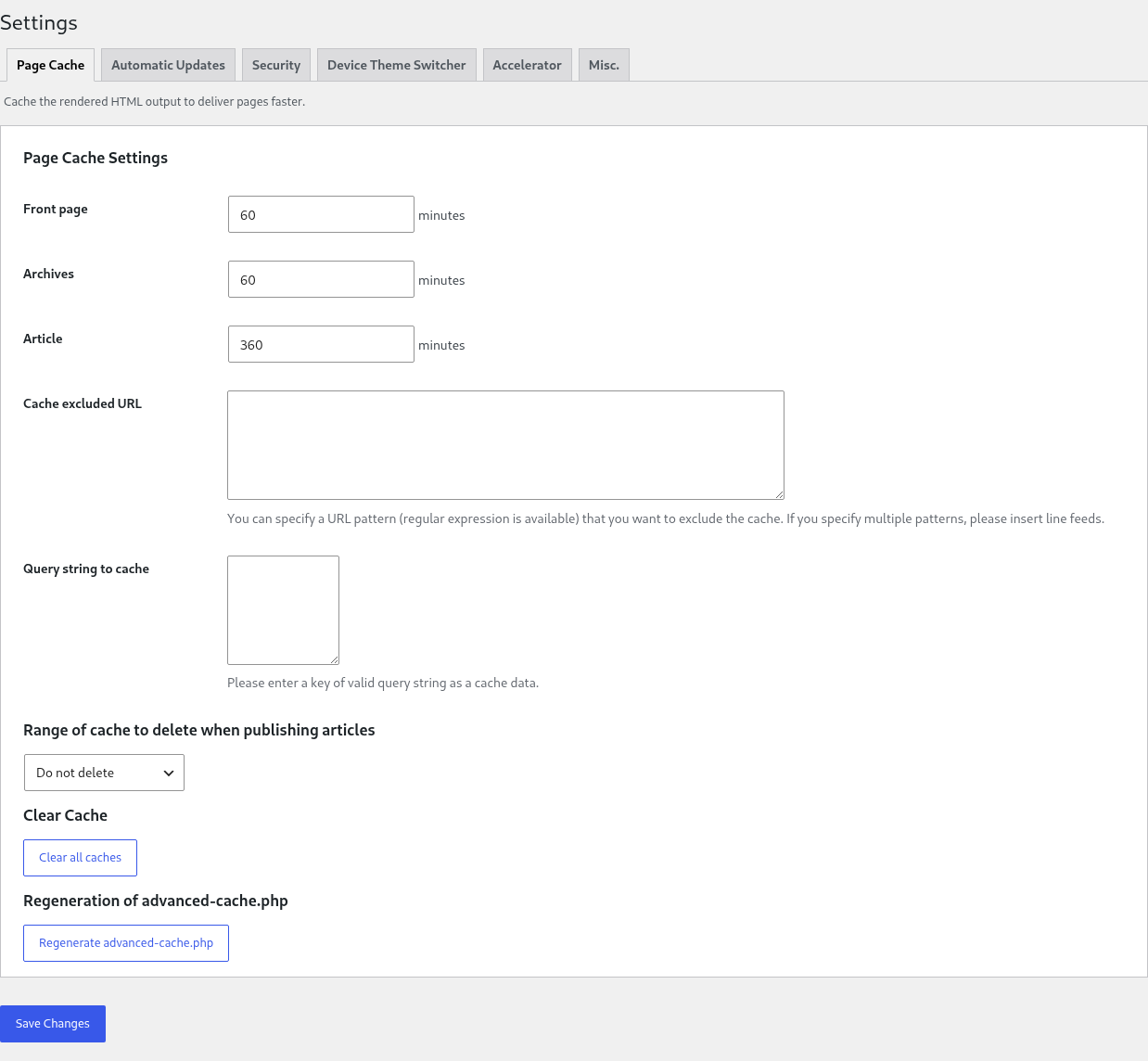
Manage automatic update policies and schedules for WordPress core, plugins, themes, and translation data.
- Translations: Enable or disable automatic updates.
- Plugins: Select “Disable all,” “Configure individually,” or “Enable all.”
- Themes: Select “Disable all,” “Configure individually,” or “Enable all.”
- WordPress Core: Select “Disable all,” “Enable minor updates,” or “Enable major updates.”
- Automatic Update Schedule: Specify the day of the week and time. If you do not enable a custom schedule, updates run according to the standard WordPress schedule.
At the bottom of the screen, you can check the automatic update status of the active theme and installed plugins. If you select individual configuration, configure each item on the WordPress Plugins or Themes screen.
Configuring wp-config.php
To run automatic updates from the KUSANAGI-Specific Plugin, you must enable the FTP password in the target profile's wp-config.php. The FTP_PASS definition is commented out by default. Uncomment it and enter the KUSANAGI login password.
// Before
// define('FTP_PASS', '*****');

// After
define('FTP_PASS', '<KUSANAGI login password>');
Use the value specified with --passwd during kusanagi init. If the line remains commented out or the password is incorrect, an error appears at the top of the Automatic Updates screen and automatic updates cannot run.
FTP_PASSSecurity
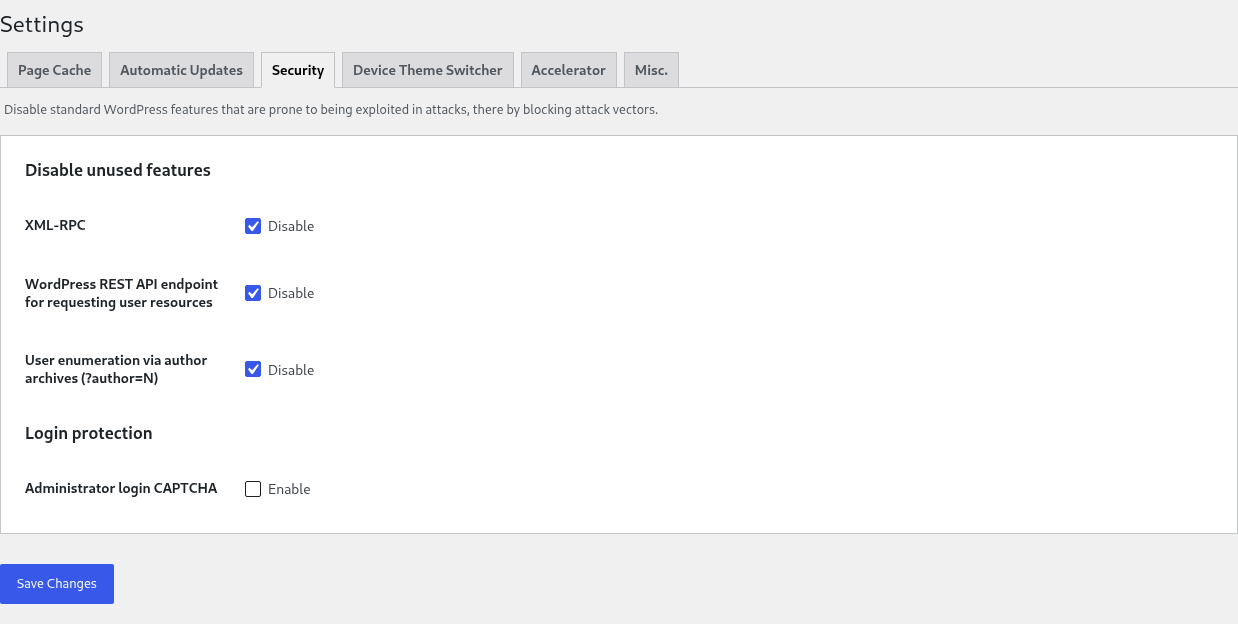
Disable standard WordPress features that are commonly exploited in attacks and protect the login screen.
Disabling Unnecessary Features
- XML-RPC: Disables XML-RPC.
- WP REST API User Endpoint: Disables REST API endpoints that expose user information.
- Username Enumeration via Author Archives (?author=N): Prevents usernames from being inferred using author IDs.
Login Protection
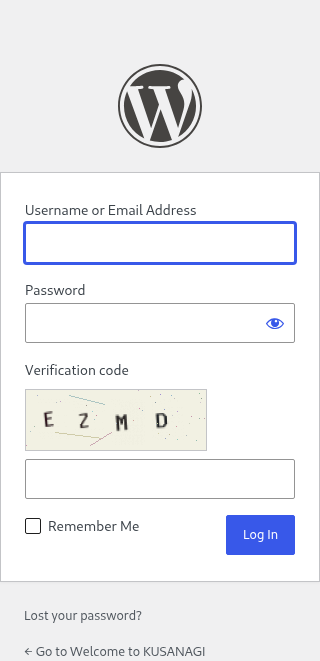
- Administrator Login CAPTCHA: Adds a four-character verification code to the WordPress login screen.
Enabling Administrator Login CAPTCHA
- Open the “Security” tab under “Settings.”
- Under “Login Protection,” select “Enable” for “Administrator Login CAPTCHA.”
- Select “Save Changes.”
When enabled, a verification code image and input field appear on the WordPress login screen. Select the image to generate a new code. Verification codes expire after a certain period and become invalid after one use.
Device Switching
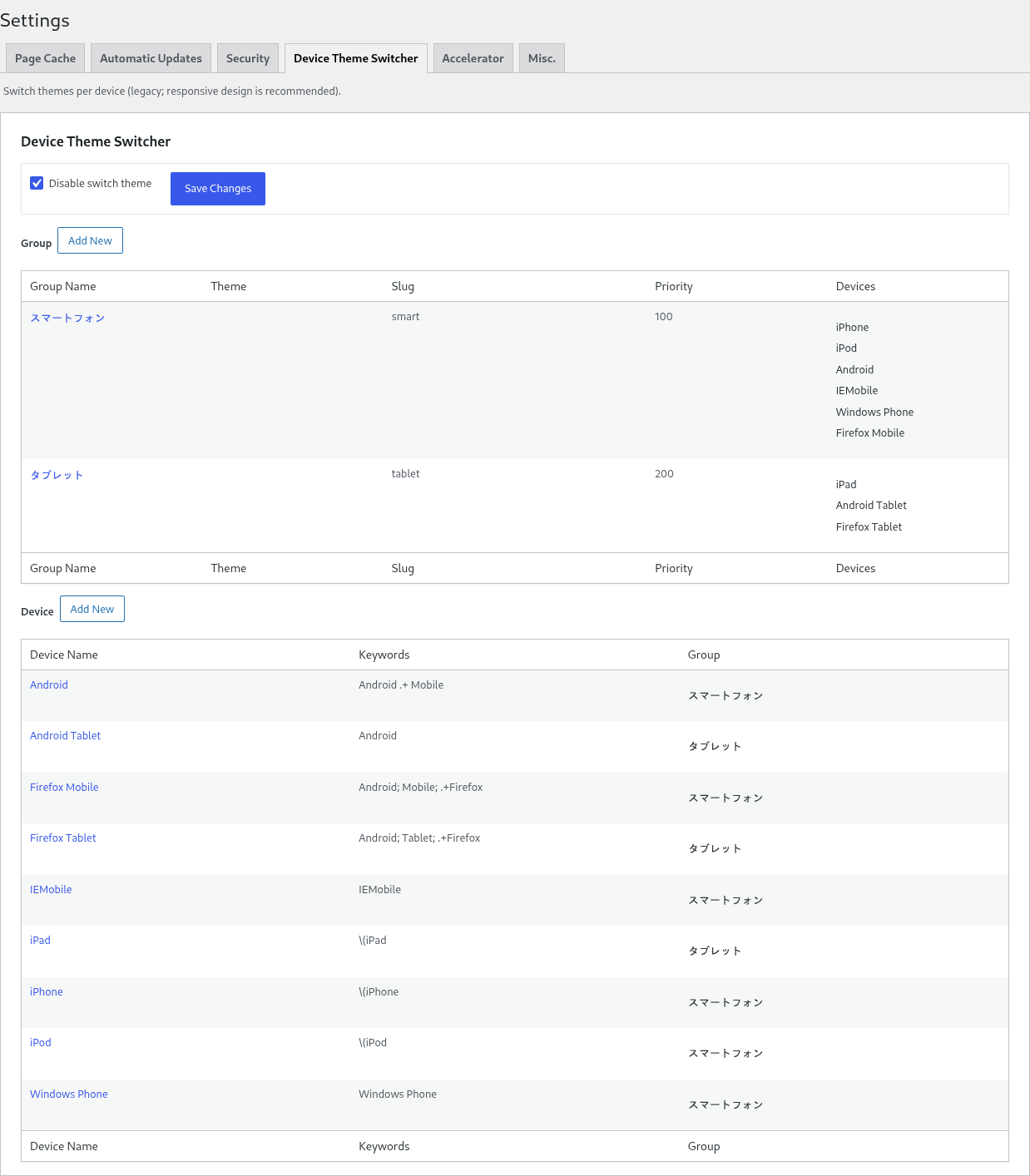
This legacy feature switches themes according to the device, such as a smartphone or tablet. Responsive design is now recommended.
- Disable Theme Switching: Enables or disables the feature.
- Groups: Configure the theme, slug, and priority for each device group.
- Devices: Assign each device to a group. Common devices are registered by default.
Accelerators
Translation Accelerator
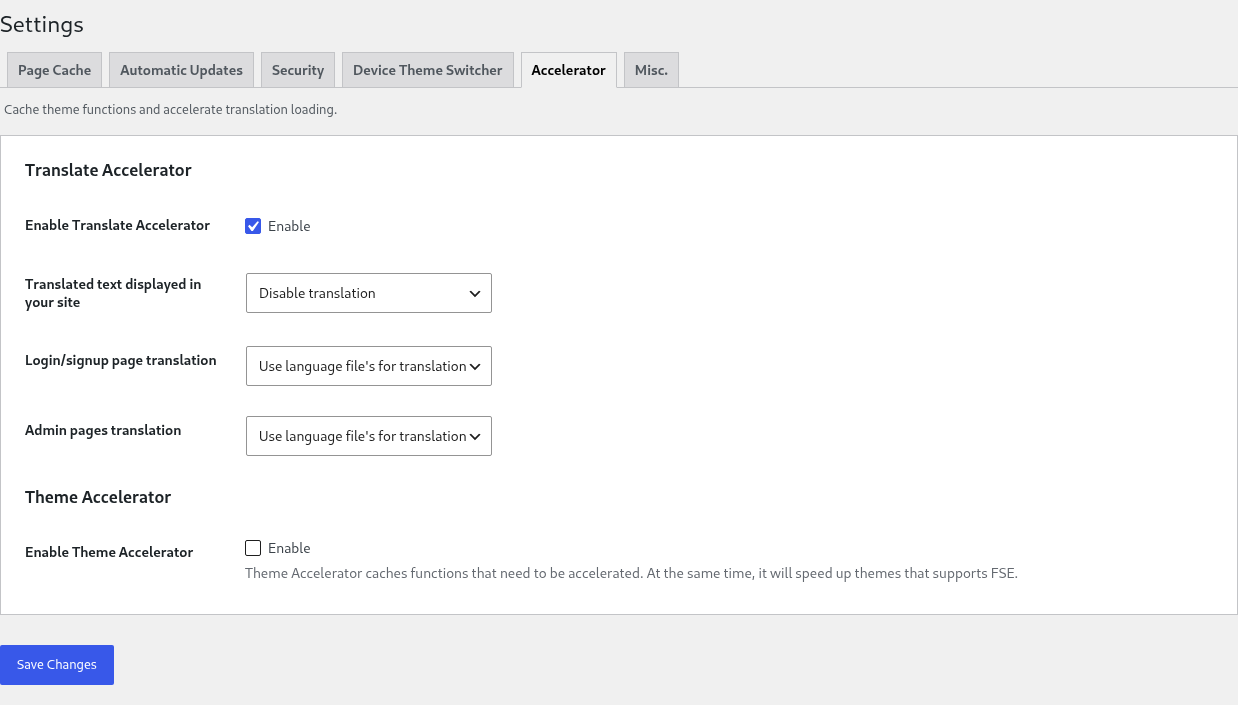
Stops or caches translation processing for WordPress core, plugins, and themes to accelerate translation-data loading. You can select the behavior separately for the front end, login screen, and administration screen. Do not select “Stop Translation” on a site that requires translations.
Theme Accelerator
Caches theme functions that benefit from acceleration. It also applies to Full Site Editing themes. Select “Enable Theme Accelerator” and save the setting.
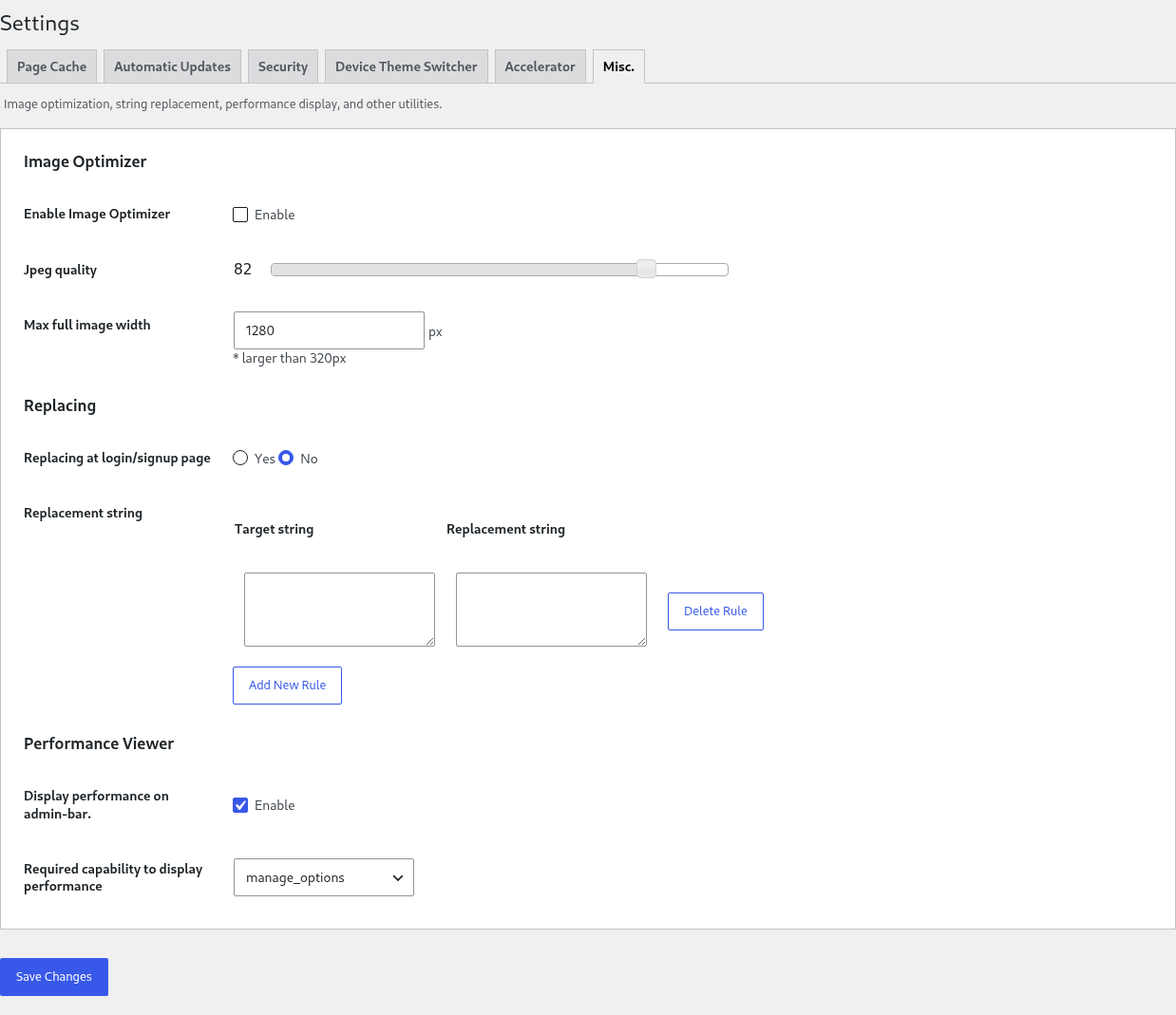
Miscellaneous
- Image Optimization: Adjusts JPEG quality and the maximum image width during upload. Specify a maximum width of at least 320 px.
- Replacement: Replaces strings output by WordPress according to specified rules. You can also choose whether to apply the rules to the login and sign-up screens.
- Performance Display: Displays WordPress execution time and query count in the administration bar. You can specify the capability required to view the information.
Information
View updates for KUSANAGI-related modules, KUSANAGI Tech Column articles, and information about events and seminars.
Support
Find links to documentation, FAQs, the user forum, official social media accounts, paid support services, and other resources.


