
KUSANAGI AI Assist adds diagnostic and AI features to the KUSANAGI-Specific Plugin. It is available with Business Edition and Premium Edition.
For common features such as page cache, automatic updates, and security, see KUSANAGI-Specific Plugin Settings. For product features and use cases, see the KUSANAGI AI Assist Plugin introduction page.
Requirements
- KUSANAGI Business Edition or Premium Edition
- WordPress 7.0 or later
- The latest versions of KUSANAGI, the KUSANAGI-Specific Plugin, and KUSANAGI AI Assist
You can view the Plugin Advisor and Environment Diagnostics results without configuring an AI provider. Additional AI settings are required to receive AI advice about diagnostic results and to use the plugin overlap check.
Administration Screen
When KUSANAGI AI Assist is loaded, information and status for AI features, Plugin Advisor, and Environment Diagnostics are added to the KUSANAGI Dashboard. The “AI,” “Plugin Advisor,” “Environment Diagnostics,” and “MCP Connection” tabs are added under “Settings,” and “Advisor” appears in the left menu.
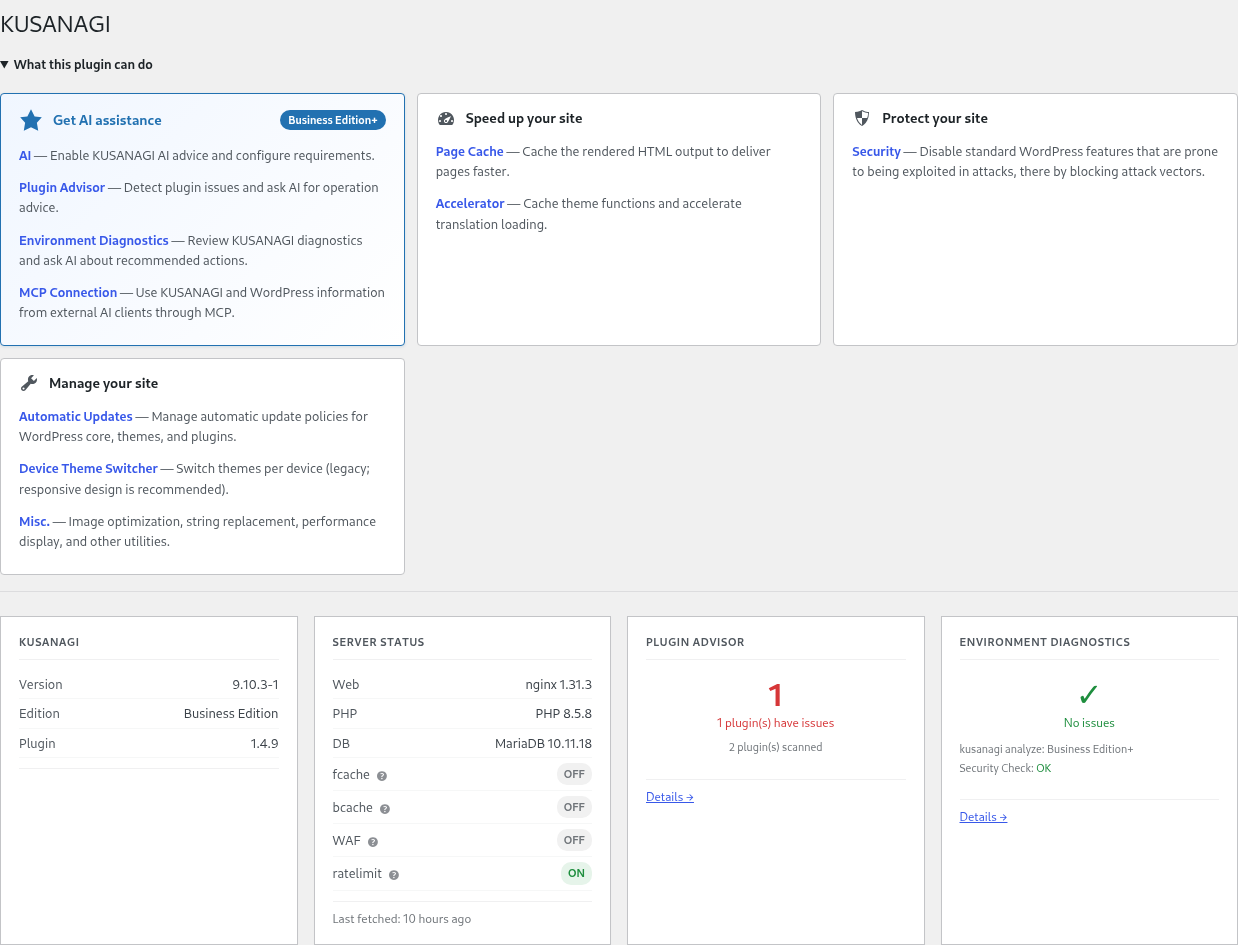
Configuring AI Advice
Open “Settings” under “KUSANAGI” in the WordPress administration screen, then open the “AI” tab. The screen automatically checks the required configuration.
- Install and activate the WordPress AI plugin.
- Install and activate the AI provider plugin you want to use.
- Open “Connectors” under “Settings” in the WordPress administration screen, authorize the provider, and save the API key.
- Enable “Abilities Explorer” in the WordPress AI plugin settings.
- Open “AI” under the KUSANAGI “Settings,” select “Enable KUSANAGI AI Advice,” and save the setting.
Obtain the API key from the AI provider you use. Pricing, usage limits, and data handling differ by provider. Review the terms of each service.
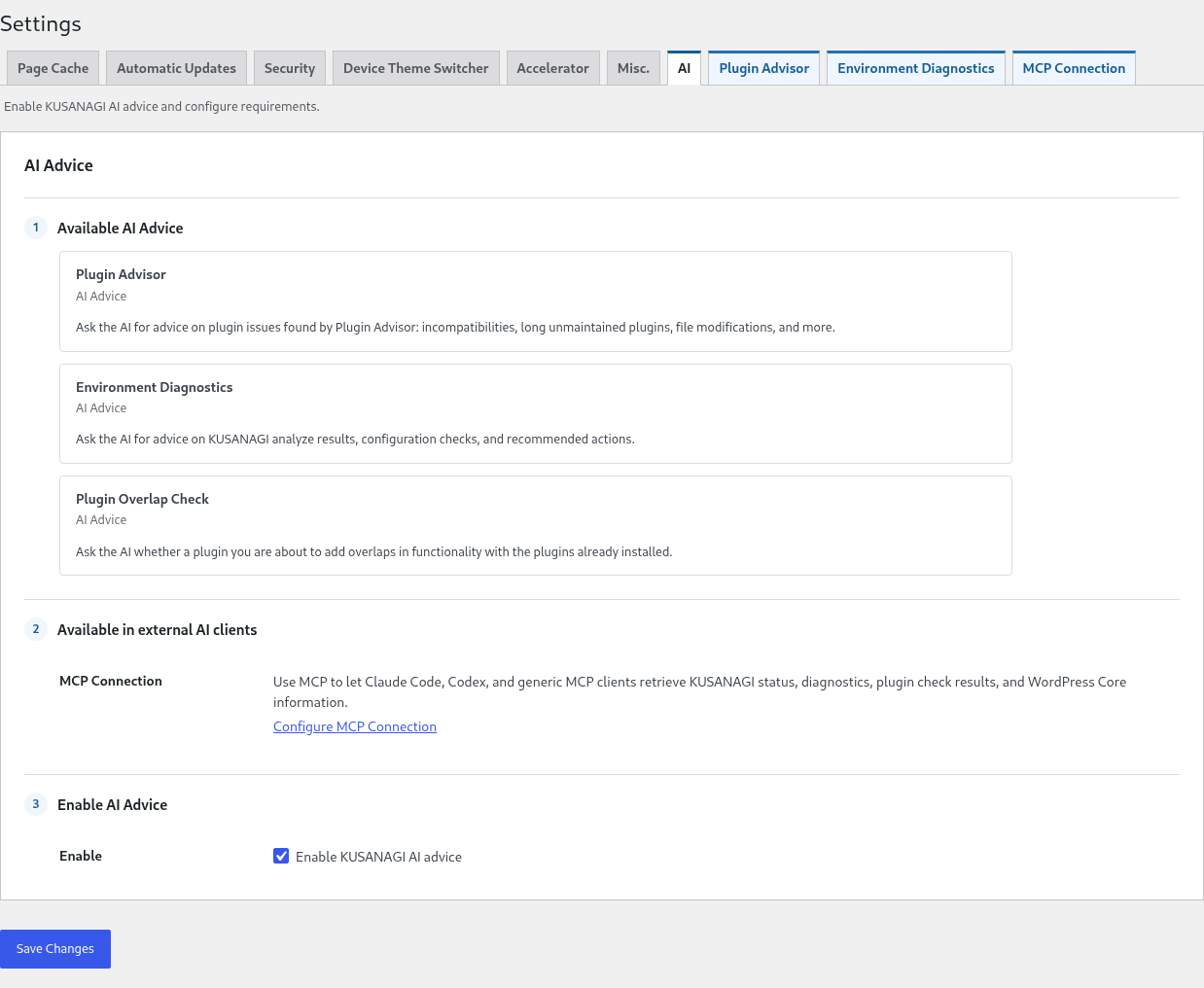
Information Sent to the AI Provider
When you request AI advice, the question and the information required for the assessment are sent to the configured AI provider. For a plugin overlap check, the name and description of the candidate plugin, the names and descriptions of plugins installed on the site being checked, and a list of KUSANAGI features are sent. When asking AI about Environment Diagnostics or plugin diagnostic results, the displayed diagnostic results are also sent.
When using this feature on a site that contains confidential information, review the submitted content and the AI provider's data usage terms. The API key itself is not sent as part of the question.
Plugin Advisor
Periodically checks installed plugins for compatibility, prolonged lack of maintenance, and differences from the files distributed on WordPress.org.
Configuring Diagnostics
Open “Plugin Advisor” under the KUSANAGI “Settings.”
- Check Frequency: Select how often automatic diagnostics run.
- Unmaintained Period: Specify how many years may pass since the last update before a warning is issued.
Reviewing Diagnostic Results
Open “Advisor” under “KUSANAGI,” then open the “Plugin Advisor” tab. Select “Run Check Now” to run diagnostics immediately.
| Item | What is checked |
|---|---|
| Compatibility | Compatibility information for the current WordPress version |
| Unmaintained | Whether the plugin has gone without an update longer than the configured period |
| File Tampering | Whether the files match the checksums from WordPress.org |
Use “Show Only Plugins with Issues” to filter the list to items with warnings or errors. If checksums are unavailable, such as for plugins installed from a source other than WordPress.org, the result is displayed as “Not Applicable.”
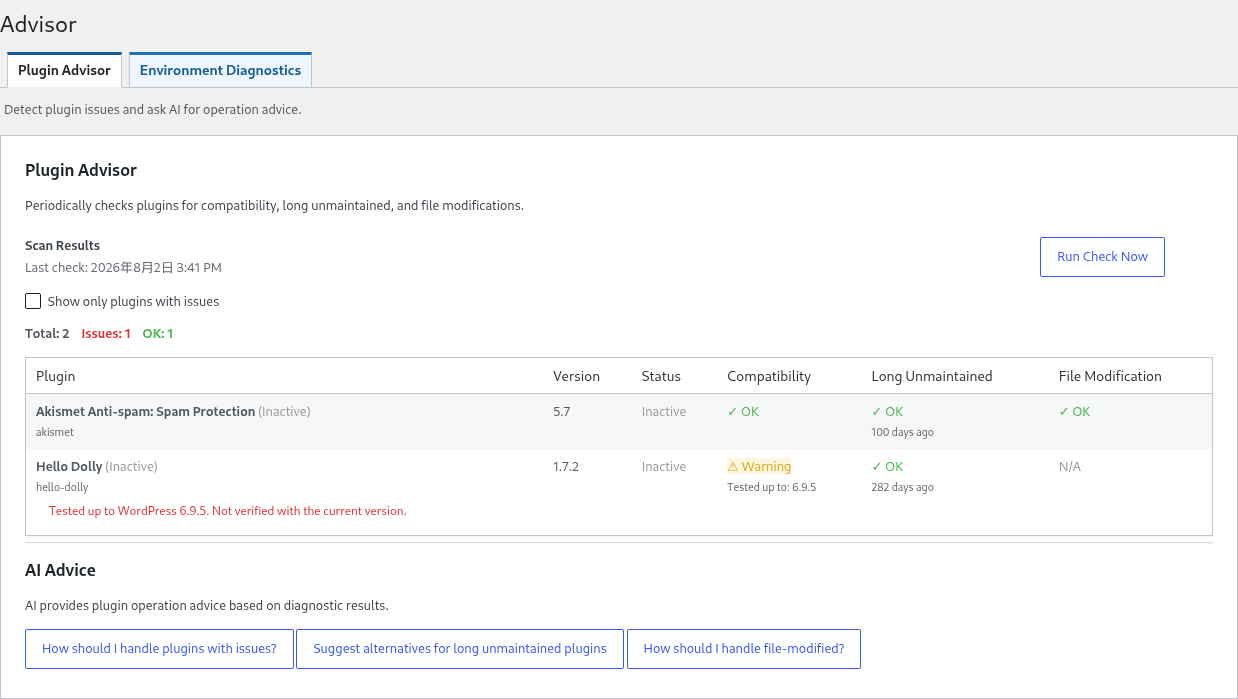
Asking AI About Diagnostic Results
When AI advice is enabled, you can ask AI how to address an issue or for alternative plugins based on the diagnostic results. Select and run one of the questions provided on the screen.
Plugin Overlap Check
Ask AI whether a plugin you are considering duplicates the features of an installed plugin or built-in KUSANAGI functionality. AI advice must be configured before you can use this feature.
- Open “Add Plugin” under “Plugins” in the WordPress administration screen.
- Search for the plugin you are considering.
- Select “Check for Overlap” on the target plugin.
- Review the “Overlap,” “No Overlap,” or “Partial Overlap” result and its explanation.
- Review the possibility of conflicts or duplicated administration before deciding whether to install the plugin.
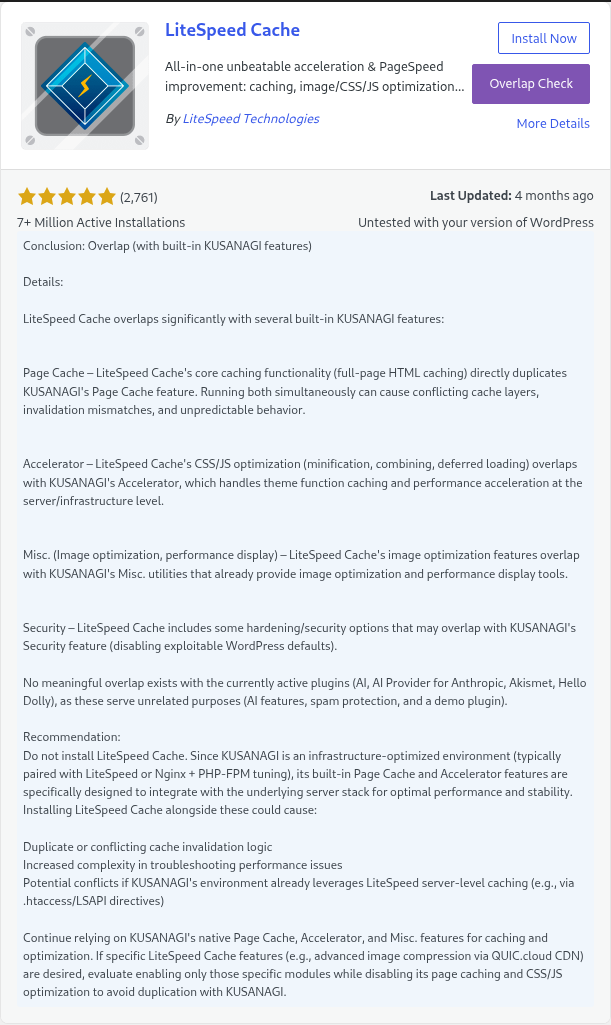
The AI response is information to support your decision. It does not guarantee compatibility or security. Also review the plugin's official information and update status, and test it in a validation environment.
Environment Diagnostics
Check the KUSANAGI server environment and WordPress configuration. Open “Environment Diagnostics” under the KUSANAGI “Settings” to specify how often kusanagi analyze runs automatically.
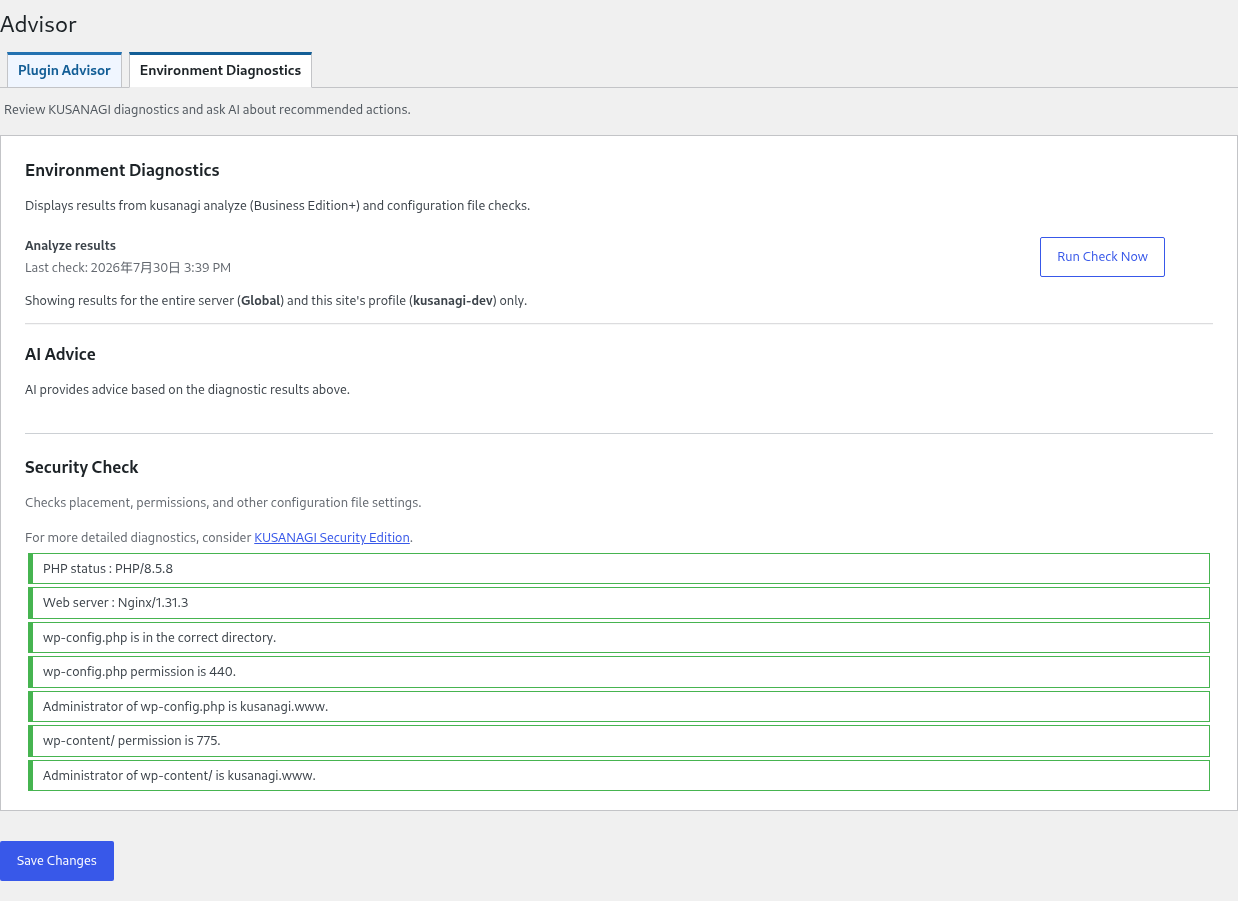
To view the diagnostic results, open “Environment Diagnostics” under the KUSANAGI “Advisor.”
- Analyze Results: Displays the results of
kusanagi analyze, grouped into ALERT, NOTICE, and INFO. - Security Check: Checks the PHP and web server versions, the locations of
wp-config.phpandwp-content, permissions, and ownership. - AI Advice: When AI advice is enabled, you can ask AI about detected issues, alerts, and remediation.
Checking from an External AI Assistant
To view the status and diagnostic results of KUSANAGI from Claude Desktop, Claude Code, Codex, or a general-purpose MCP client, see Connecting to the KUSANAGI AI Assist Plugin via MCP. You can use the MCP connection independently of AI advice in the WordPress administration screen.


